How to Detect a Shopify Theme of Any Store For Free?
Detect a Shopify theme from any store for free with Dropshiptool. Paste the URL, get the theme name, and access store details in seconds.

You see a Shopify store with a layout you love. The product pages look clean, the navigation is smooth, and the overall design just works.
Your first thought?
“What theme is that?”
Thousands of dropshippers, store owners, and ecommerce marketers do this every day. A good theme can make and break your store, and you certainly don’t want to be stuck with one that drives your customers away. You also don’t want to use the wrong themes for the wrong niches. Which is why you want to start with Shopify theme research!
You can detect a Shopify theme online for free and it's easy. Let's walk you through how to detect a Shopify theme for free in this guide.
We’ll show you what Dropshiptool can do, plus cover some other ways you can find out what themes Shopify stores are using. There will be free and paid options both. So get excited and let’s dive in!
Key Takeaways
- The fastest way to detect a Shopify theme of any store for free is Dropshiptool's Shopify theme detector. Paste the URL, hit "Detect Theme," and you get the answer instantly.
- No account or credit card is required for the free theme detector.
- If a store uses a custom theme, the tool returns "Custom" so you're never left guessing.
- You can also detect Shopify store themes manually through the page source code.
- Dropshiptool goes far beyond theme detection. It includes tools for sales tracking, ad spying, competitor analysis, and weekly curated product picks.
- Paid plans start at $26/month on annual billing and include a 7-day free trial.
What Is a Shopify Theme?
A Shopify theme controls the look and feel of a store. It sets the layout, typography, color scheme, and how sections and products display to visitors.
Shopify's official theme store has over 200 free and paid themes. Independent developers also build and sell themes outside the store, so the total number of options runs into the thousands. Some themes are built for specific niches like fashion or electronics. Others are general-purpose.
Once installed, store owners can customize a theme through Shopify's built-in theme editor, changing colors, fonts, sections, and imagery. That's why two stores can run the same theme and look very different. But the underlying structure and functionality still come from that original theme.
Why You Should Detect Shopify Store Themes?
Knowing how to find what Shopify theme a store is using isn't just a curiosity. There are concrete business reasons behind it.
- Cut through the research. Instead of scrolling through 200+ themes in the Shopify library, you spot a store with a layout you like, check its theme, and add it to your own account. You've gone from hours of browsing to one clear decision.
- Work from what's already converting. If a store in your niche has been operating successfully for two or three years, their design choices aren't random. When you detect Shopify store themes from stores that are clearly performing, you're starting from a reference point that's backed by real results.
- Track your competition. Theme changes often come alongside a rebrand or a shift in strategy. Knowing when and what a competitor switches their design to is useful market intelligence.
- Avoid expensive custom development. A custom Shopify theme built by a developer starts at around $2,000. If a pre-built theme already does what you need, knowing which one saves you that cost outright.
How to Detect Shopify Themes?
If you're wondering how to find the Shopify theme of a website, you have three main options. Each works, but they differ in speed and how much information they return.
- Online Shopify theme detector tools: Paste a URL, get the theme name in seconds. No installation needed.
- Shopify theme detector extensions: Browser add-ons that pull up theme details while you browse. Convenient but usually limited to the theme name only.
- Source code method: Open the page source manually and search for shopify.theme. Takes more steps but works without any tool.
The top Shopify theme detectors go beyond just naming the theme. The best ones give you additional store context that supports wider research. Here's a breakdown of each.
Best Ways to Detect a Shopify Theme Free Online
Here are some of the best ways we recommend to detect a Shopify theme free online. Try them out.
1. Use Dropshiptool's Free Shopify Theme Detector (No Account Needed)
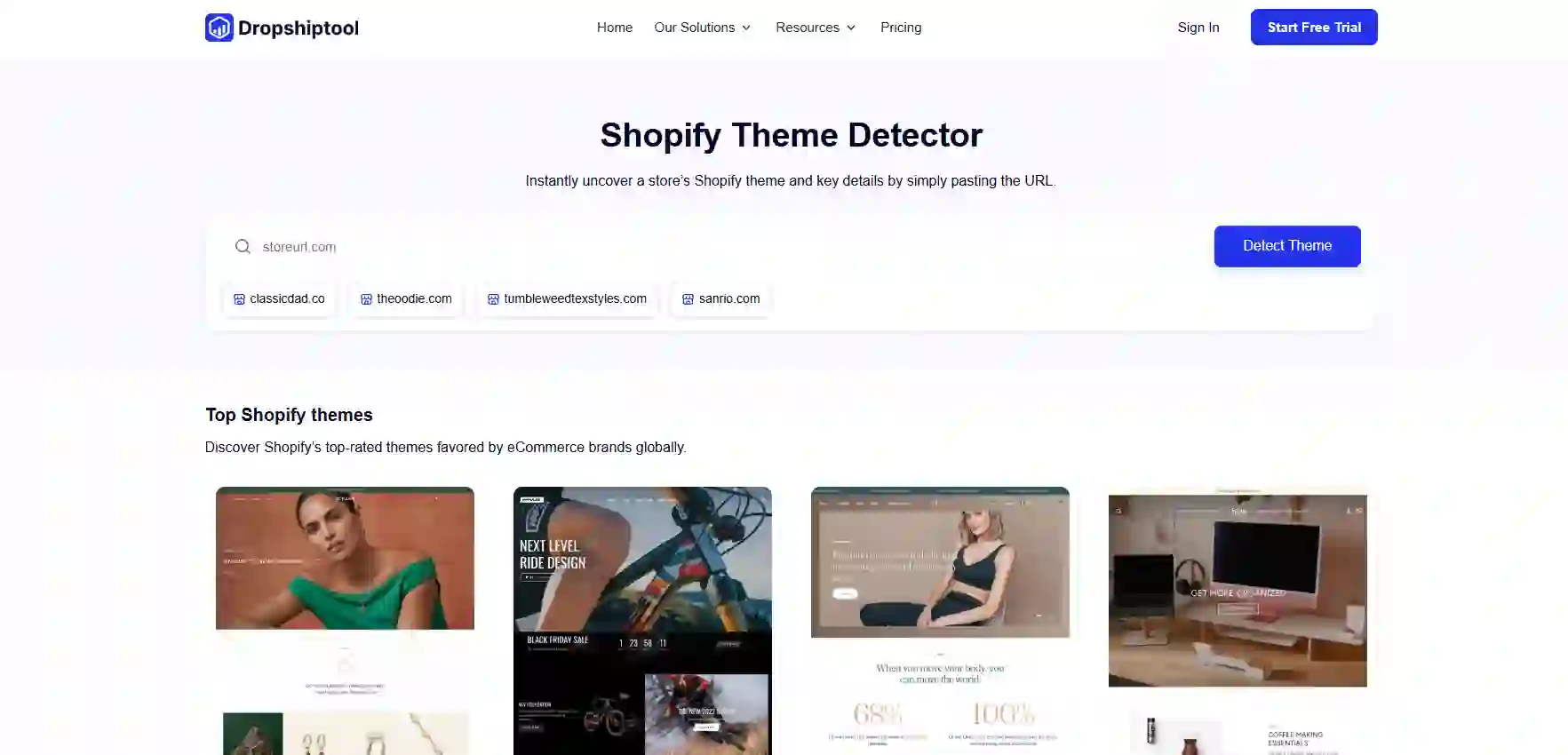
You can use its Shopify theme detector by Dropshiptool to detect a Shopify theme free.
You can use the Dropshiptool Shopify theme detector without signing up on the app.
It will let you do the following:
- Find out what theme a Shopify store is using. You can discover themes like Prestige, Impact, Dawn, and many more.
- No credit card needed, enjoy the 7-day free trial
- Uncover key details about a Shopify store's theme.!
Here's how it works:
- Go to Dropshiptool's Shopify theme detector.
- Paste the URL of the store you want to check.
- Click "Detect Theme."
- The theme name appears right away.
No downloads. No sign-up forms. You paste the URL and get your answer.
The tool also shows a curated list of top Shopify themes on the same page, so you can browse what's popular among ecommerce brands right now while you're there. Store examples like classicdad.co, theoodie.com, tumbleweedtexstyles.com, and sanrio.com are shown as quick-access references.
Beyond Shopify store themes, if you are interested in sourcing similar products to your competitors or better variants, check out Spocket. Spocket makes it easy for dropshippers (or any business owners!) to find trending dropshipping products online in the US, EU, and anywhere in the world! We also recommend giving our Shopify dropshipping guide a read.
What If the Store Uses a Custom Theme?
If the store was built on a theme developed specifically for that brand, the detector returns "Custom." This tells you the theme isn't available for public use. You won't find it in the Shopify theme store, and you can't install it on your own account.
Seeing "Custom" also gives you competitive context. It usually signals the store has invested heavily in its design, often $2,000 or more. That's worth factoring into how you think about that competitor.
2. Use a Shopify Theme Detector Extension
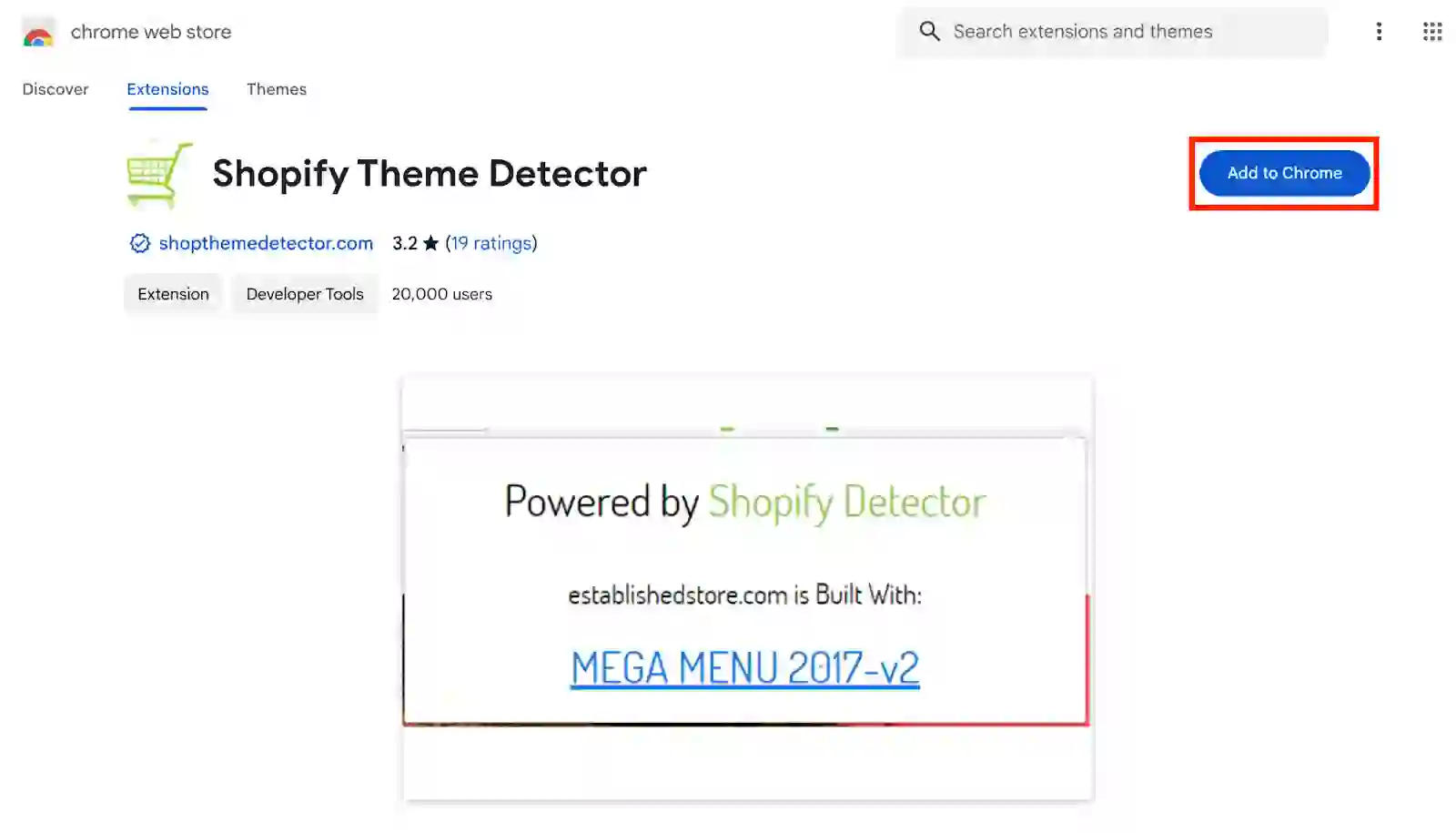
A Shopify theme detector extension lives in your browser and surfaces theme information while you browse. You visit the store, click the extension icon, and see the theme details in a popup.
The main advantage is convenience during a browsing session. If you're checking themes across 10 or 15 stores in one sitting, an extension cuts down on tab-switching.
The trade-off is scope. Extensions typically return only the theme name. If you want store sales data, product counts, or ad visibility alongside the theme, you'll need a more complete platform. That's where the online tool method covers more ground.
3. Check Shopify Theme Name in the Source Code
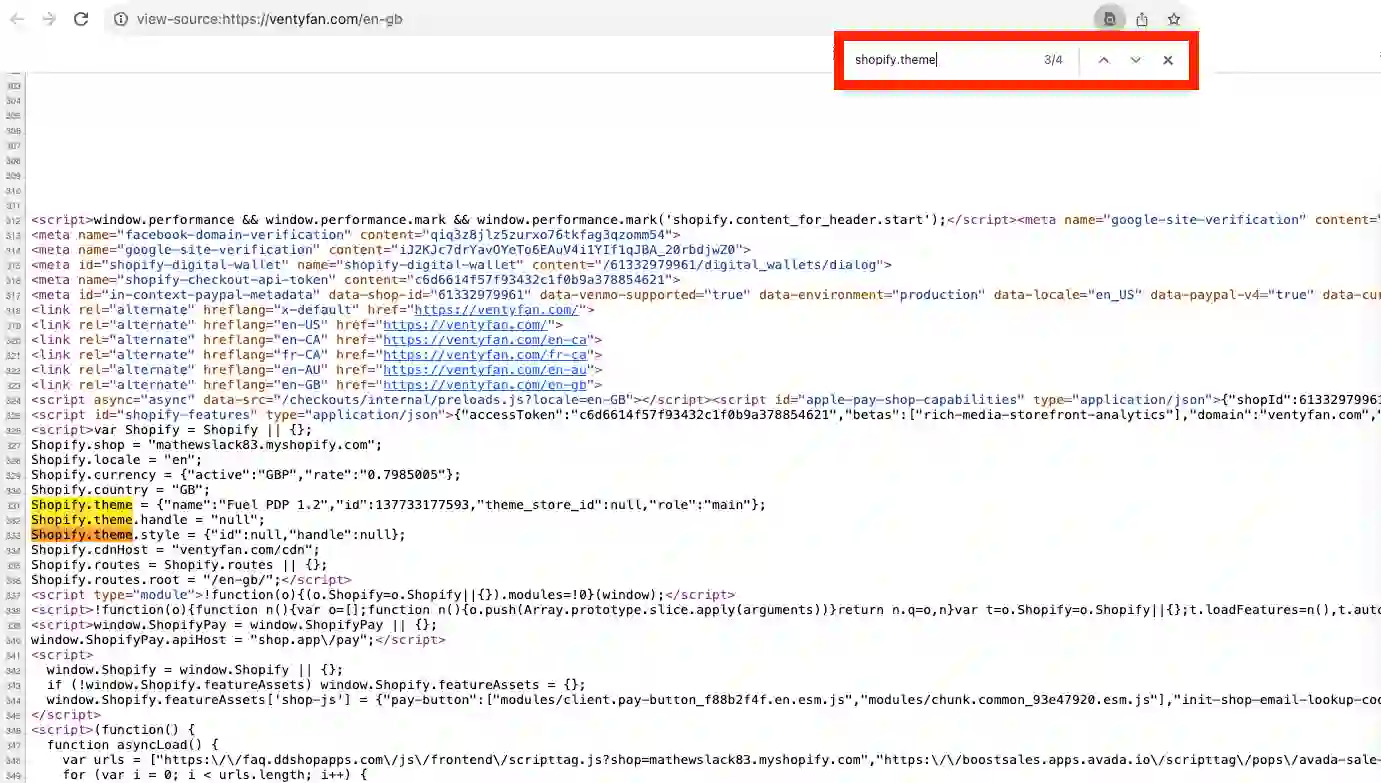
If you want to know how to tell what Shopify theme a website is using without any tools at all, the page source works on any Shopify store. Here's the process:
- Open the Shopify store in your browser.
- Press Ctrl + U (PC) or Option + Command + U (Mac) to open the source code.
- Press Ctrl + F (PC) or Command + F (Mac) to open the search bar.
- Type shopify.theme and press Enter.
- The highlighted result will show the theme name next to the "name" field.
You'll also see a theme ID in the same line. If the theme name isn't immediately clear, searching that ID along with "Shopify theme" on Google usually returns the name.
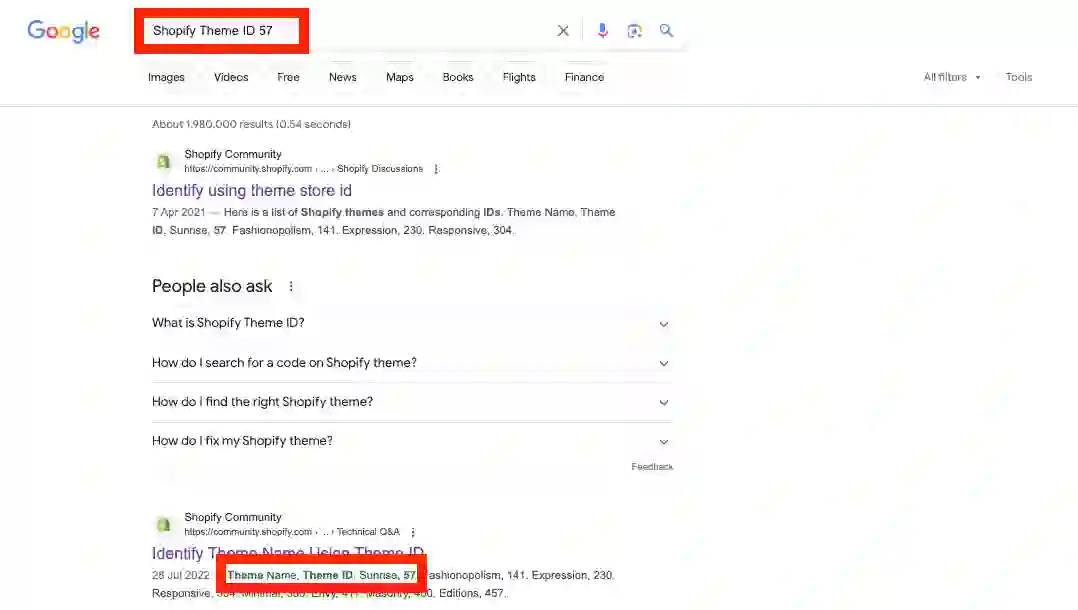
If the store uses a custom theme, the name field will show something like eg-custom-brandname, confirming it's not a publicly available theme.
This method is accurate, but checking multiple stores one by one through source code gets repetitive fast. A free Shopify theme detector online is quicker if you're doing this at any volume.
4. Reverse Image Search (Use Google Lens)
If you have a strong hunch about the theme and want a visual match, you can browse the Shopify theme store manually and use Google Lens to cross-check online. With over 200 themes in the library, the right one might be there. You can do a reverse image search with Google Lens by taking screenshots of the store theme and checking online.
The problem is that most active stores have customized their theme heavily. Color palette, navigation style, font choices, and section layouts all change after installation. The live store you're looking at may look nothing like the stock preview in the library.
Use this method as a last resort, when you already have a theme name in mind and want visual confirmation. For how to find out what theme any Shopify store is using quickly and accurately, the online detector tool is a better starting point.
5. Contact the Shopify Store Owner
This is probably our last tip. Contact the store owner directly. Send them an email and just ask. Most of the time, they are happy to respond and don’t mind!
Custom vs. Pre-Built Themes: What It Means for Your Store?
When you detect Shopify store themes and see "Custom," it's worth understanding what that actually signals compared to a pre-built theme.
A pre-built theme is available to any Shopify merchant. If a competitor uses one, you can install the same theme, apply your own branding, and start from the same structural foundation. This is the most practical outcome when you're doing theme research.
A custom theme was built from scratch by a developer or agency, specifically for that store. It's not available for purchase anywhere. You can't replicate it without hiring similar development work, which starts around $2,000.
If the top stores in your niche are all running custom themes, that signals the design standard in your space may be higher than average. It's a useful data point before you decide how much to invest in your own store's look.
Beyond Shopify Theme Detection: What Dropshiptool Offers?

Dropshiptool is built as a full research platform for Shopify sellers. Theme detection is one of its free entry points, but the platform covers much more ground.
1. Competitor Research
Competitor Research lets you search across over 3 million Shopify store listings by product keyword, description, or domain keyword.
Say you're in the fitness niche and want to find stores selling resistance bands. Type your keyword, filter by category, and pull a list of stores with their total product count, store age, and domain. Track any of them with a single click. You'll see what products they're listing and how their store has aged, all without having to visit each store manually.
2. AI Sales Tracker
The AI Sales Tracker gives you real-time performance data for every store you track. You'll see top sales figures, average daily sales, and best-selling products, with filters for the last 7 or 30 days.
Say you're watching a competitor in the home goods space. Open their store in the tracker and see that their top product has generated 312,000 total sales with an average of $31.20 per day. You now know what product is moving for them and at what volume. That's the kind of insight you can act on.
3. Product Database
The Product Database gives you access to millions of products already selling across Shopify stores. Filter by category, price range, domain TLD, store language, and supplier source.
If you want beauty and personal care products priced between $15 and $50, sourced from AliExpress, and selling on US-based .com stores, you can set those exact filters and get a targeted list. Each result shows cost price, selling price, estimated profit margin, and which stores are currently listing that product.
4. Ad Spy Tool
The Ad Spy Tool shows you what ads are running right now across Facebook, Instagram, and TikTok. Filter by niche, engagement rate, ad format, country, and more.
Each result shows ad spend, EU reach, audience demographics (country, age, gender), creation date, and how long the ad has been active. If you want to understand what's driving traffic to a product in your niche before you commit to selling it, this is where you look.
5. Product Portfolio
The Product Portfolio is a weekly curated drop of up to 40 handpicked products, selected by Dropshiptool's team based on demand and margin potential. Each product shows cost price, selling price, P/C ratio, and POT profit.
Past drops are organized by week and month, so you can go back and review what was trending at any point. When something looks worth pursuing, click through to view full product details and source it directly.
Dropshiptool Pricing
The Shopify theme detector is free with no account required. For full access to the platform, here's how Dropshiptool Pricing breaks down:
Monthly billing:
- Starter: $39/month
- Professional: $59/month
- Empire (Most Popular): $99/month
- Unicorn: $299/month
Annual billing:
- Starter: $26/month
- Professional: $34/month
- Empire: $59/month
- Unicorn: $79/month
All plans include a 7-day free trial. You pay only after the trial ends.
The Starter plan gives you 25 product searches per day, 10 competitor searches per day, 1,000 Ad Spy credits, 10 products per week in the Portfolio, and tracking for 10 stores and 10 products.
The Empire plan, the most popular option, scales that to 200 product searches per day, 150 competitor searches, 20,000 Ad Spy credits, 30 products per week, and tracking for 30 stores and 60 products.
Conclusion
Detecting the theme behind a Shopify store you admire doesn't have to be a guessing game. With Dropshiptool's free Shopify theme detector, you get the answer in seconds, without creating an account or installing anything. And if you want to go further, the platform gives you the full picture: competitor stores, real-time sales data, winning products, and top-performing ads across Facebook and TikTok. It's the kind of intel that takes the uncertainty out of building and scaling your Shopify store.
Start your free trial with Dropshiptool today.
Start your dropshipping business today
Detect a Shopify Theme FAQs
How can I identify the theme used by a specific Shopify store?
The quickest way is to use a free Shopify theme detector online. Paste any store URL into the tool and you get the theme name instantly. You can also open the store's page source by pressing Ctrl+U and search for shopify.theme using Ctrl+F. Either way, you'll get the name, or a note confirming the store uses a custom theme that's not publicly available.
Is there a free Shopify theme detector I can use without signing up?
Yes. Dropshiptool's Shopify theme detector is completely free and requires no account or sign-up. Go to the tool page, paste the store's URL, and click detect. You get the theme name in seconds. No email address, no credit card, and no trial period is required to use this specific feature.
What does it mean if a Shopify store shows a "Custom" theme?
A custom theme means the store's design was built for that brand specifically, usually by a developer, and isn't available in the Shopify theme store. You can't copy or install it. If a competitor runs a custom theme, it signals a significant design investment, often starting at $2,000 or more, that can't be replicated with any off-the-shelf option.
How do I find out what theme any Shopify store is using through the source code?
Open the store and press Ctrl+U (PC) or Option+Command+U (Mac) to view the page source. Press Ctrl+F and type shopify.theme. The result shows the theme name next to the "name" field. If you only see a numeric ID, search that number along with "Shopify theme" on Google and you'll usually get the full theme name.
Can two Shopify stores with the same theme look completely different?
Yes. The Shopify theme editor lets store owners change colors, fonts, section layouts, imagery, and content blocks. Two stores on the same theme can look very different after customization. For a truly unique design, you'd need a custom-built theme or direct edits to the theme code, which usually requires a developer.
How do I know which Shopify theme a website is using if it has a custom domain?
The source code method works regardless of the domain. Any Shopify-powered store will have shopify.theme in its page source, even with a fully custom domain and no visible Shopify branding. A free Shopify theme detector tool will also confirm whether the site runs on Shopify while returning the theme name at the same time.


Launch your dropshipping business now!
Start free trial.avif)


Related blogs

Complete Guide to Starting an AI Thumbnail Design Service in 2026
Learn how to start an AI thumbnail design service from scratch. Find tools, pricing strategies, client acquisition tips, and real earning potential in this complete guide.

Transform Your Product Images with Stylesi.ai: Tips & Tricks
Turn ordinary product photos into stunning ecommerce visuals with Stylesi.ai. Get practical tips for AI styling, automation, and sales.

T-Shirt Design Size and Placement Tips for Printify
Optimize your T-shirt designs for Printify with the right size and placement. Follow best practices for high-quality prints, fewer errors, and higher sales.